
Compression
Geometry and quantization
Mesh cleanup and vertex precision
Geometry settings change the mesh data inside the GLB. Some changes are mostly cleanup. Quantization is different: it stores vertex data with less precision, which can make files smaller and can also change how the model looks.
Geometry cleanup
Open Advanced > Geometry to control mesh cleanup.
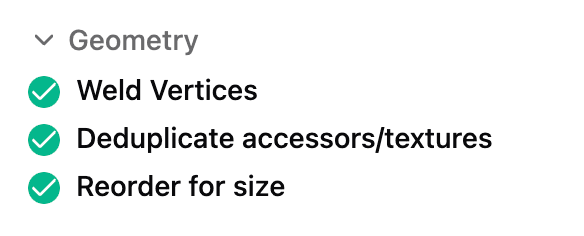
| Option | What it means | Turn it off when |
|---|---|---|
| Weld Vertices | Merges identical vertices so shared geometry can be stored more efficiently. | The model shows unexpected seams or topology changes after compression. |
| Deduplicate accessors/textures | Removes duplicate GLB data such as repeated accessors, textures, meshes, and materials. | Rarely. This is usually safe. |
| Reorder for size | Reorders mesh data for better binary compression and transmission size. | Another app has trouble loading the compressed GLB. |
Unused data is pruned during compression even when no visible setting refers to it.
Quantization
Open Advanced > Quantization to control how precisely vertex attributes are stored.
Lower numbers usually make the file smaller. Higher numbers preserve more precision.
That tradeoff matters most for CAD-derived models. A tiny hole or sharp edge can be useful geometry, not decorative detail.
| Option | Range | Default | Controls | If too low |
|---|---|---|---|---|
| Position | 8-16 | 14 | Vertex positions. | Edges, holes, or small CAD details may shift. |
| Normal | 6-12 | 8 | Surface normals used for lighting. | Surfaces may look faceted, wavy, or shaded incorrectly. |
| Texcoord | 8-16 | 12 | UV coordinates used to place textures. | Textures may smear or no longer line up with the model. |
| Color | 6-12 | 8 | Vertex colors. | Gradients or painted colors may show banding. |
| Generic | 8-16 | 12 | Other vertex attributes not covered above. | Custom data or tool-specific attributes may lose precision. |
Common fixes
Edges moved or small details disappeared
Increase Position. For CAD parts, use Low or set Position to 16.
The model looks faceted
Increase Normal. If the source file already had rough normals, convert again from the source and inspect the uncompressed GLB before compressing.
Texture placement changed
Increase Texcoord. If the texture was already wrong before compression, check the original conversion and sidecar files.
Another app rejects the GLB
Use Low first. If it still fails, disable Reorder for size and keep higher quantization values.