
Compression
Presets
Low, Medium, and High compression
Start with a preset. Only open Advanced if the result looks wrong or you know exactly what you need to change.
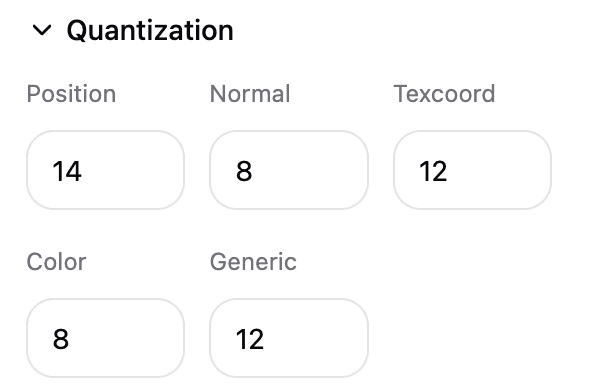
The preset names describe compression strength, not file quality.
| Preset | Use when | What it changes |
|---|---|---|
| Low | You need the safest visual result. | Uses lighter quantization, keeps larger textures, and does not reorder mesh data. |
| Medium | You want the normal first try. | Uses balanced geometry settings and resizes large textures to 2048px. |
| High | You need a smaller file for upload, sharing, or mobile. | Uses stronger quantization, texture quality 70%, and resizes large textures to 1024px. |
Exact preset values
| Setting | Low | Medium | High |
|---|---|---|---|
| Weld Vertices | On | On | On |
| Deduplicate accessors/textures | On | On | On |
| Reorder for size | Off | On | On |
| Position | 16 | 14 | 12 |
| Normal | 10 | 8 | 8 |
| Texcoord | 14 | 12 | 10 |
| Color | 10 | 8 | 8 |
| Generic | 14 | 12 | 10 |
| Texture format | WebP | WebP | WebP |
| Texture quality | 90% | 80% | 70% |
| Texture max resolution | 4096px | 2048px | 1024px |
What to try first
| Goal | Start with |
|---|---|
| Safe first attempt | Medium |
| Preserve CAD edges and small holes | Low |
| Small web preview | High |
| Product model with labels | Medium, then raise texture quality if needed |
| Transparent material or cutout texture | WebP or PNG. Avoid JPEG. |
| Target app rejects the GLB | Low, then disable Reorder for size |
If the preset is too aggressive
Use a lighter preset first.
If that still changes too much:
- Raise Position if edges, holes, or CAD details moved.
- Raise Normal if lighting looks faceted.
- Raise Texture Quality or Max Resolution if textures look blurry.
- Disable Reorder for size if another app stops opening the GLB.