
View
Materials and wireframe
Debug surface data, transparency, and mesh density
Use this page when the model opens, but the result does not look right.
The important question is usually not "can I see the model?" It is what kind of problem you are looking at: a material problem, a missing texture problem, or a geometry problem.
First split the problem
Switch between Material and Wireframe.
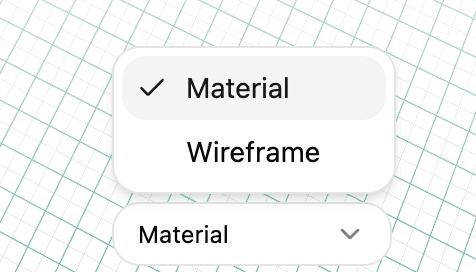
If Material view looks wrong but Wireframe looks reasonable, the geometry probably imported and the issue is surface data.
If Wireframe is extremely dense, tangled, or missing parts, the issue is probably geometry. Materials will not fix that.
Material view
Material view shows the surface data Convert3D can read from the file.
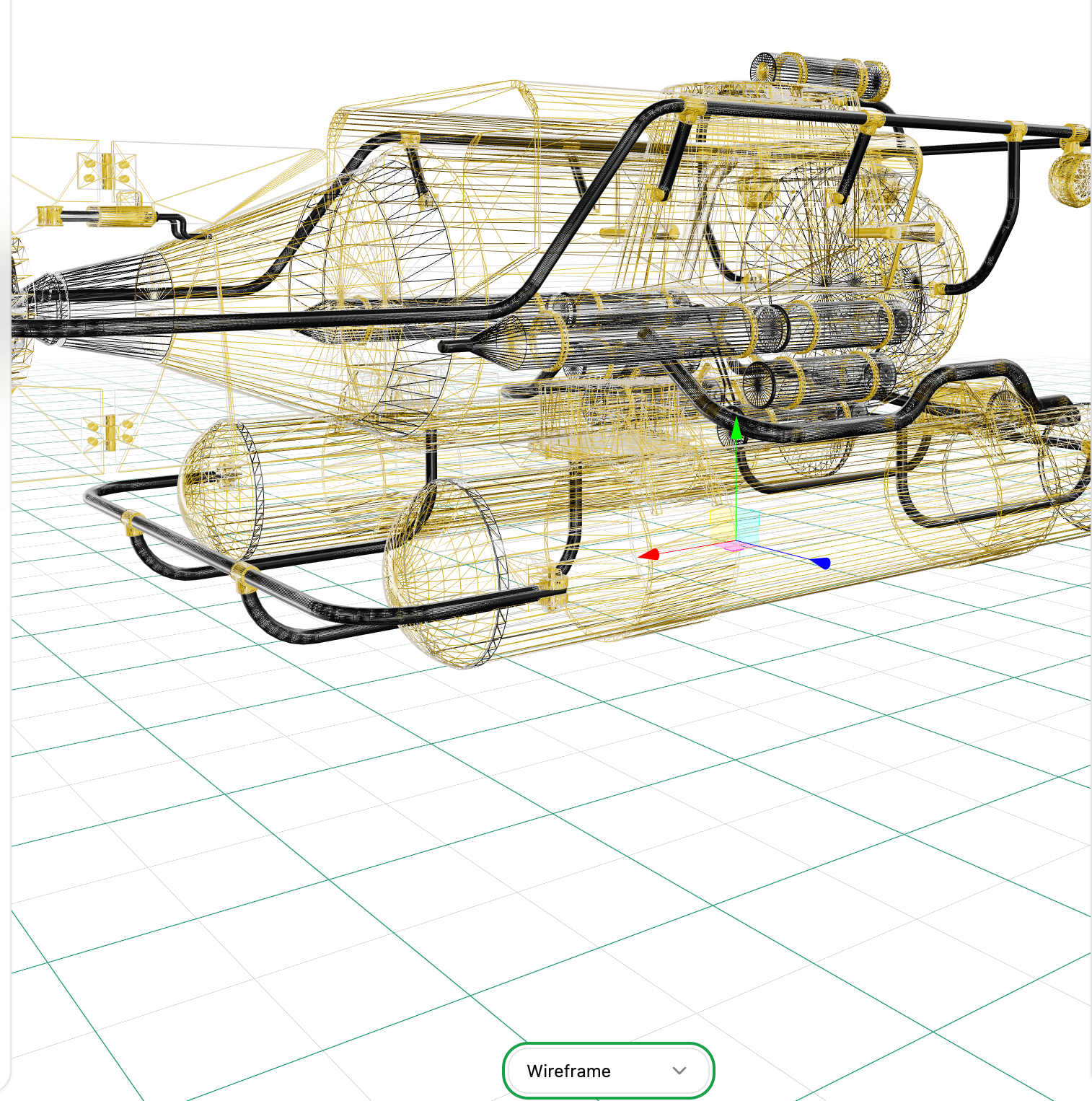
Look for these clues:
- A model that is all white usually lost textures, material files, or vertex colors.
- A model that has basic colors but no realistic surface may have imported CAD colors, not render materials.
- A transparent part that turns solid usually has missing alpha data or an unsupported material setup.
- A metallic part that looks flat may have lost roughness, metalness, or environment-dependent lighting.
If it is wrong here, converting the file to another format usually carries the wrong result forward. Fix the source export or include the missing sidecar files first.
Wireframe view
Wireframe view shows the triangle structure behind the surface.
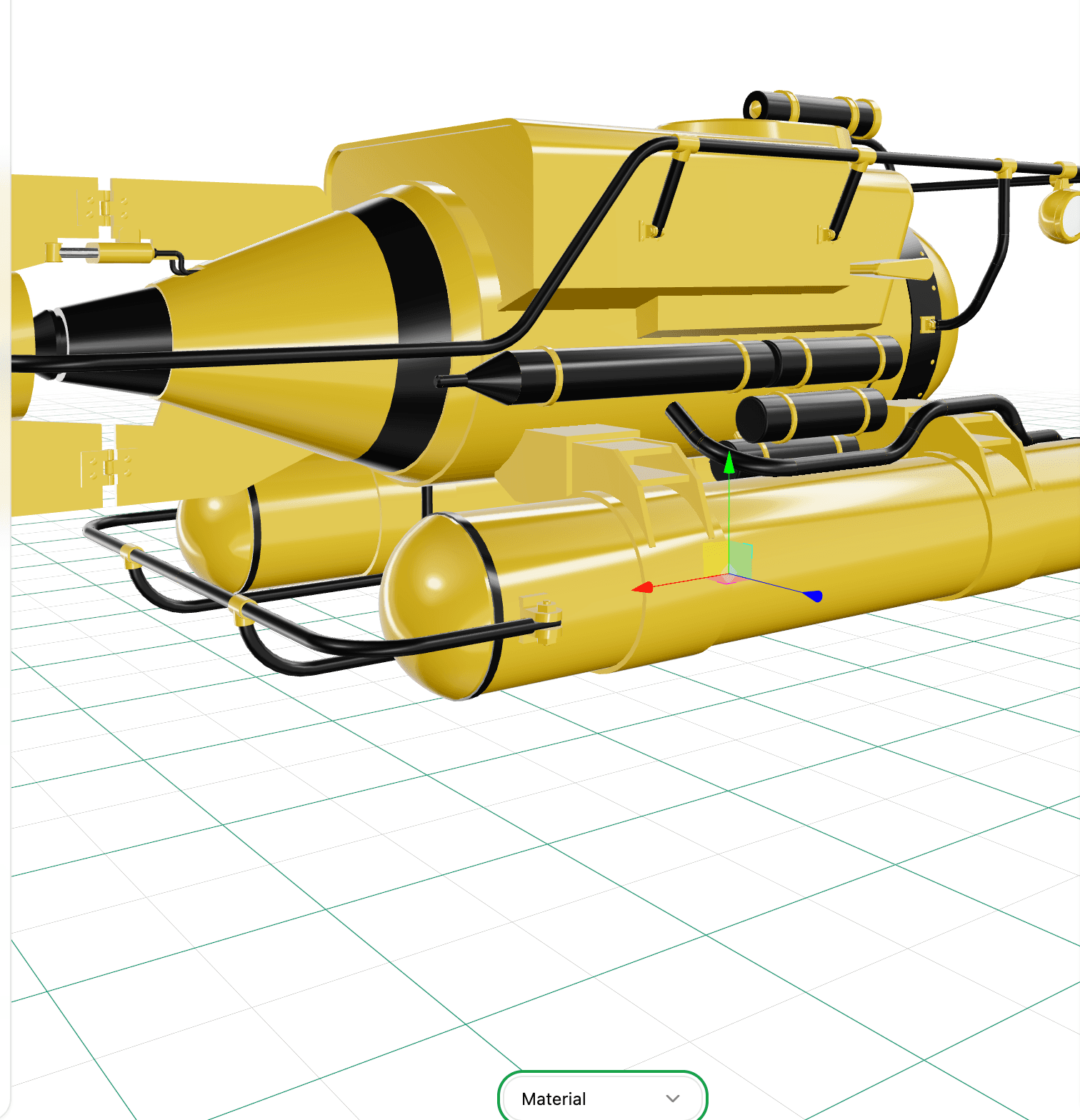
Use it to answer questions that Material view hides:
- Is this one object, or several meshes sitting on top of each other?
- Did a CAD model become a very dense triangle mesh?
- Are small details real geometry, or are they only textures?
- Is the model heavy because of one part, or because everything is dense?
Dense wireframe is not automatically bad. CAD, scans, and sculpted models can be dense for good reasons. It becomes a problem when the target app has upload limits, slow loading, or mobile performance requirements.
Read the material panel
Select a node to see the material values stored on that part.
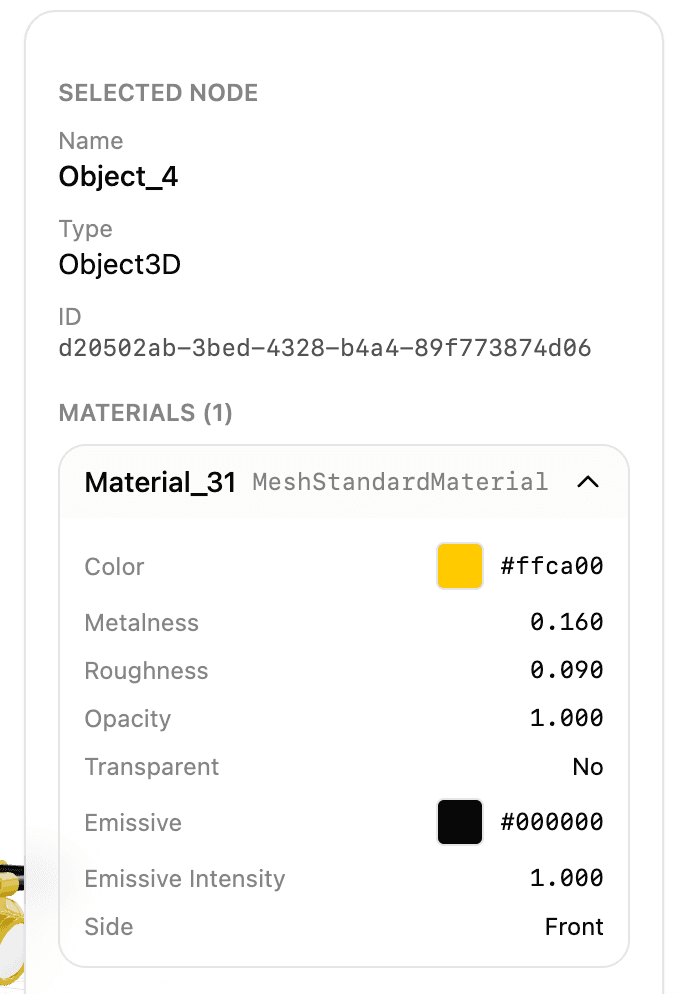
The useful fields are:
| Field | What it tells you |
|---|---|
Color | The base material color. If this is white but the original was textured, the texture may be missing. |
Metalness | 0 is non-metal, 1 is fully metallic. Values in between are common after conversion, but may not match every renderer. |
Roughness | Lower values look glossier. Higher values look more matte. |
Opacity | 1 is opaque. Lower values need transparency support in the target app. |
Transparent | Whether the material is treated as transparent, not just whether opacity is below 1. |
Emissive | A color that appears self-lit. Some target apps ignore this. |
Side | Whether faces render from the front, back, or both sides. With single-sided (front), faces are culled when seen from behind, so a surface can vanish or look see-through from one angle. |
The material name is usually less important than the values. Names like wire_086086086 or Material_31 often come from the exporter. Messy names do not mean the material failed.
Common source format problems
Start here before changing settings at random:
objneeds the.obj,.mtl, and texture images together. Uploading only the.objoften gives you plain geometry.gltfcan reference a.binfile and external textures. Missing one of those can make the model load without the expected materials.glbis usually safer for web use because it can keep geometry, materials, textures, and binary data in one file.stlis mostly geometry. Do not expect normal material data from it.- CAD formats often bring over part colors, not full render materials. That can be enough for inspection, but not enough for product rendering.
What to try next
If textures are missing, re-export as glb or upload the full set of sidecar files.
If the mesh is too dense, try Compression and check the result in Wireframe again.
If a part disappears from one side, check Side first. A double-sided material may be needed in the target app.