
View
View
Inspect a 3D file in the browser
Use View when you need to inspect a 3D file before you convert, compress, or render it.
It is most useful when something already feels wrong: the model is empty, the scale is strange, materials are missing, or a file is much heavier than it looks.
Open a model
Go to convert3d.org/view, then upload a supported 3D file.
For the fastest load time, use glb or gltf. Other supported formats may need to be prepared for browser viewing first.
If the model looks empty
Fit the model to the screen before assuming the file failed.
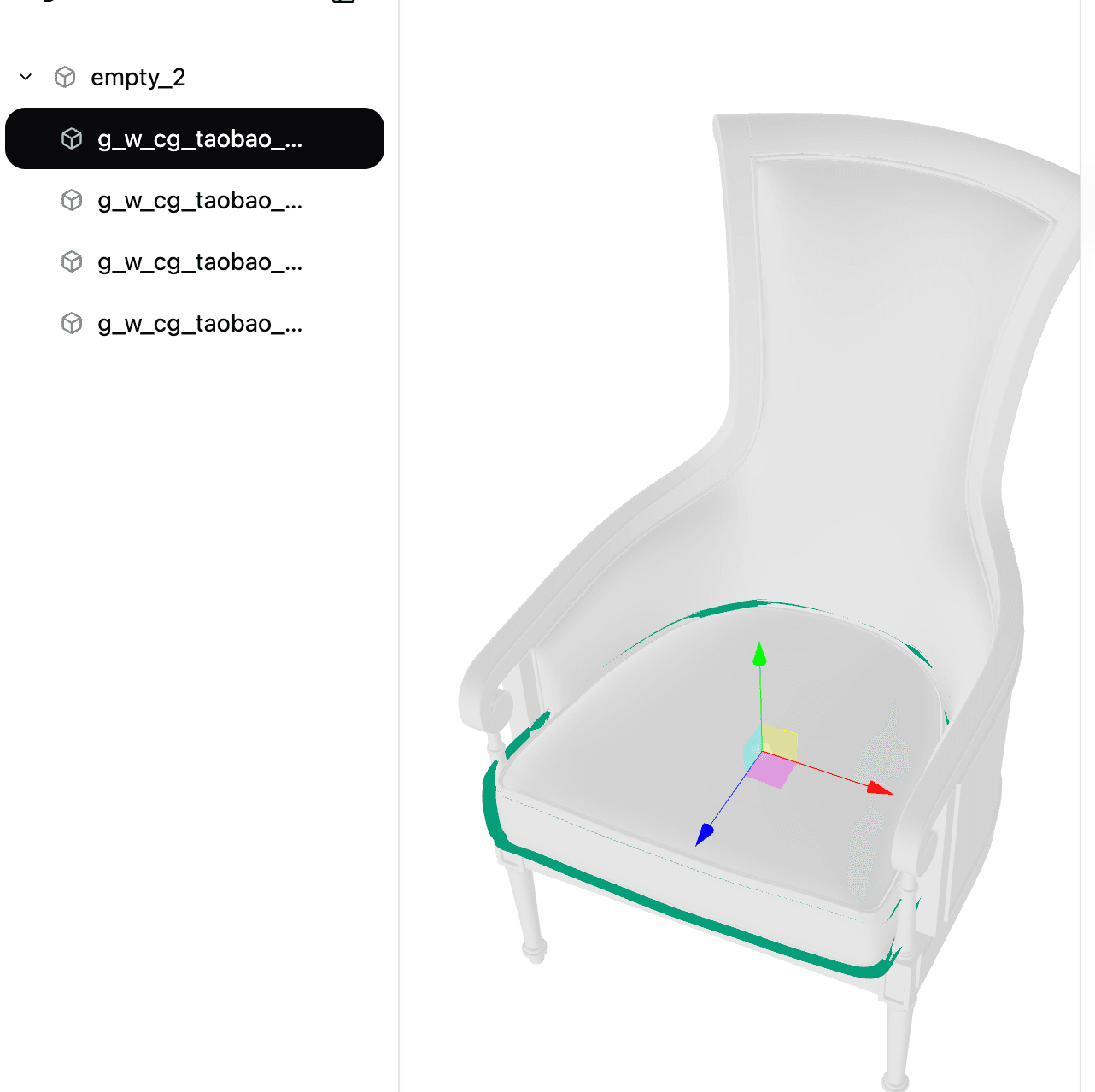
Some files place geometry far from the origin. Some arrive tiny. Some arrive huge. This is boring until it costs you an hour.
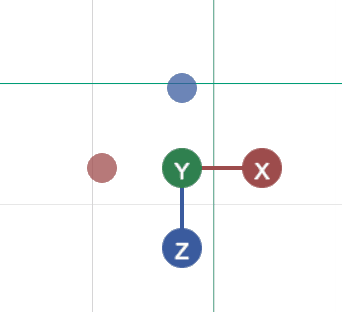
The axis gizmo helps you check whether the file is facing the expected direction.
What to check
Use View to answer these questions:
- Is the geometry actually in the file, or only a wrapper node?
- Are parts separate meshes, or one combined object?
- Did the file keep colors, transparency, and material values?
- Is the model dense enough to explain slow loading or upload failures?
- Is the orientation wrong before you send it to another app?
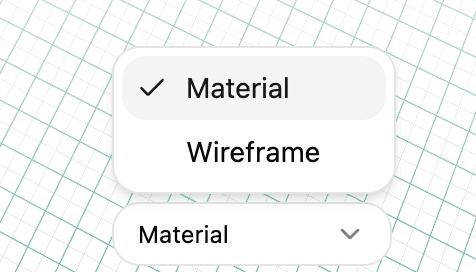
Material and Wireframe answer different questions. Use Material for surface data. Use Wireframe for geometry.
Where to go next
Read Scene hierarchy if you are trying to find one part of a model, hide or inspect a node, or understand why the object names look strange.
Read Materials and wireframe if the model loads but the surface, texture, transparency, or mesh density looks wrong.