
Sharing
Sharing
Create a review link for a 3D model
Use Sharing when someone needs to look at - or use - a 3D model you have. They don’t need a 3D app to view the model, and they can download whatever format they need. You don’t need to convert the model first.
This is great for reviews, approvals, and quick handoffs. If the other person needs to edit the source file, just share the original project files.
My transfers
Your transfers page shows links you have created before, including expired ones.
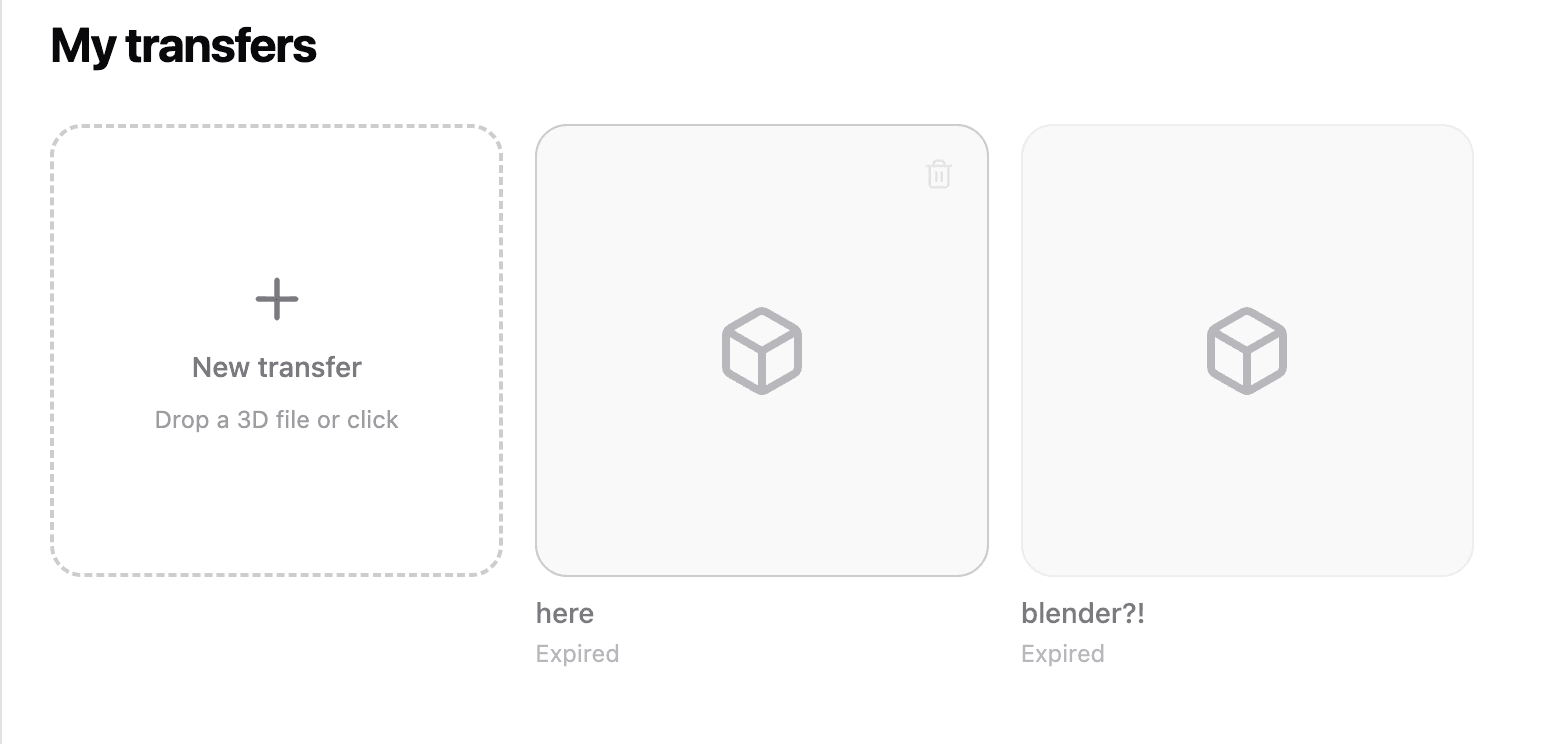
Expired transfers are no longer available to the recipient. Create a new transfer if someone needs access again.
Create a transfer
Start a new transfer, then add a title and message that explain what the recipient should check.
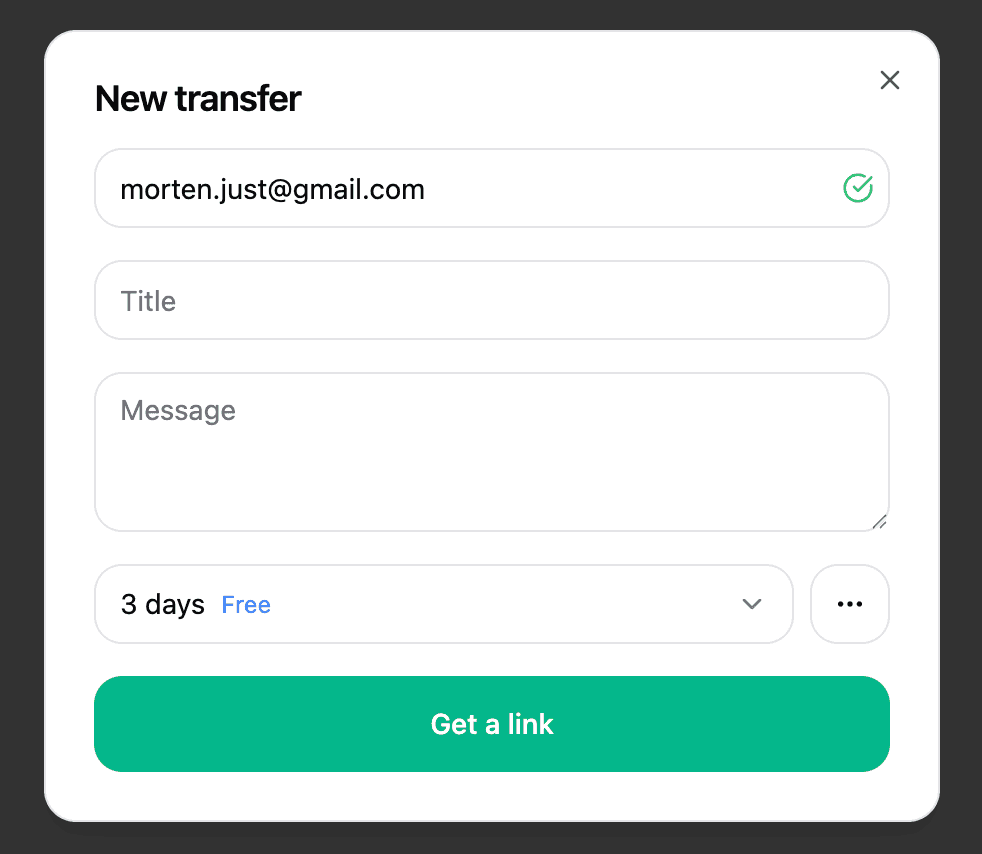
The title and message appear on the shared preview page. Use them for the thing the reviewer actually needs to decide, not for internal notes.
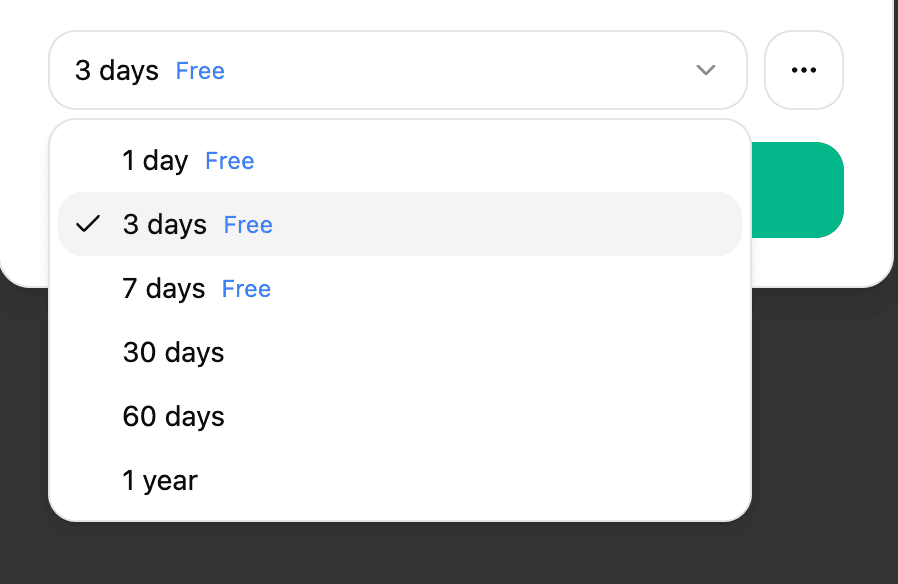
Good examples:
New model for approvalCheck the scale before we send this to printDoes the material look right on the helmet?As agreed, a new model of the trashcans for the beach
Less useful:
FileTestHere
Set an expiration
Choose how long the link should work.
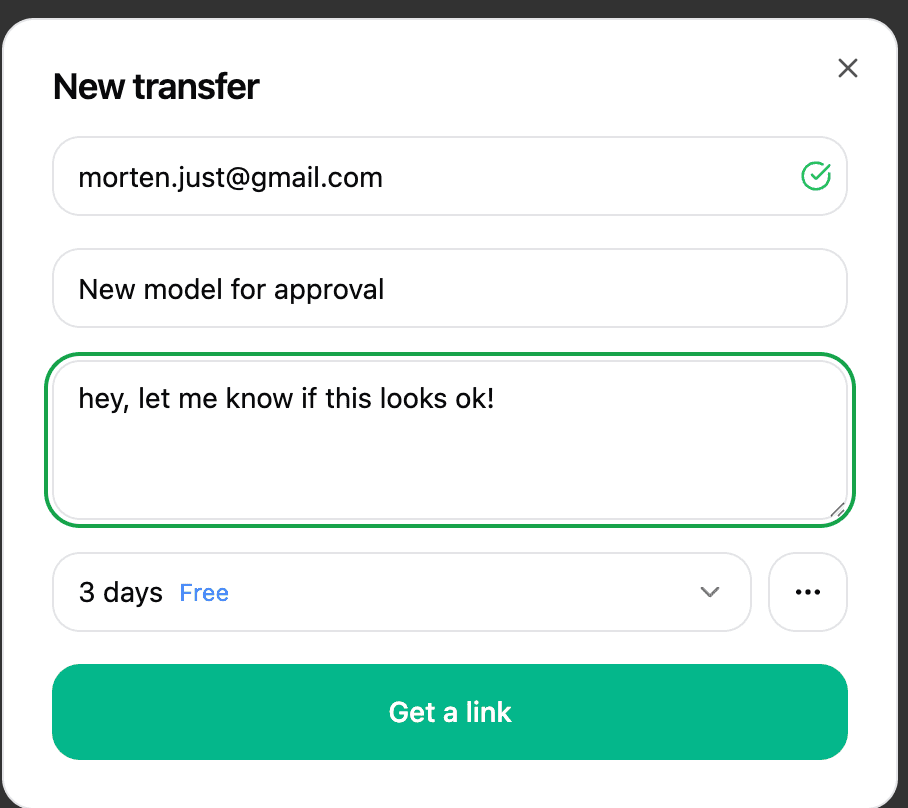
Use shorter links for quick review. Use longer links only when the recipient really needs time to come back to the file.
If a transfer expires, the recipient cannot use the old link anymore. Make a new transfer instead of sending the old link again.
Add a password when needed
Password protection is useful when the link may be forwarded, pasted into a ticket, or shared outside a small group. In general, shares are kind of secret because their URLs are unguessable. The password adds an extra layer of safety.
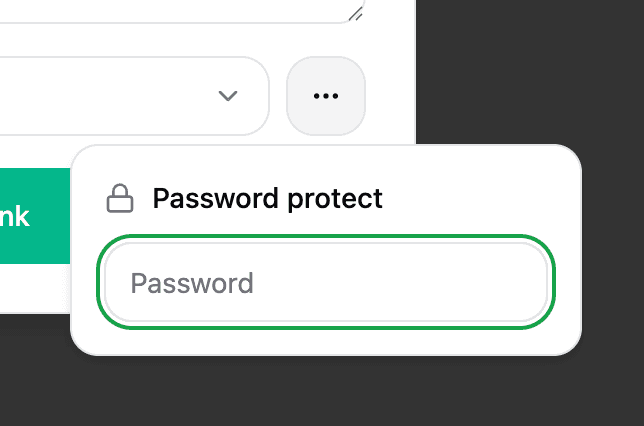
Send the password separately from the link. For example, send the link in email and the password in chat, or deliver it over a nice cup of coffee.
Create the link
After you click Get a link, Convert3D creates the transfer.
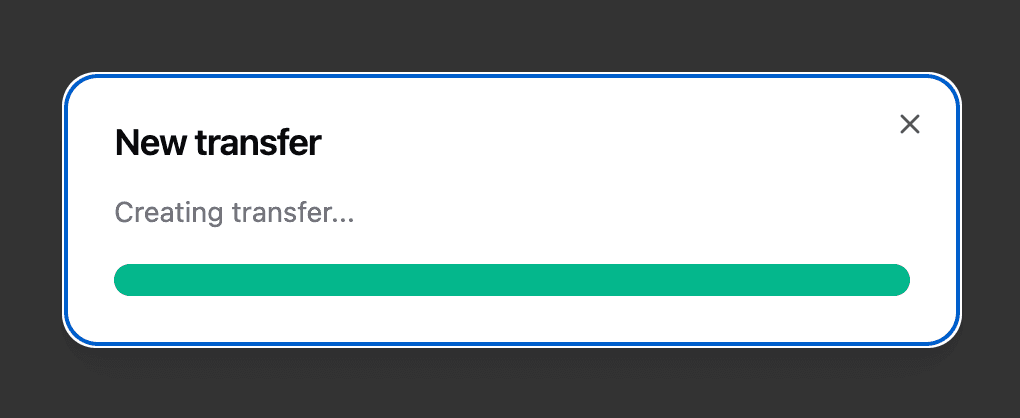
When it is ready, copy the link or open the preview yourself before sending it.
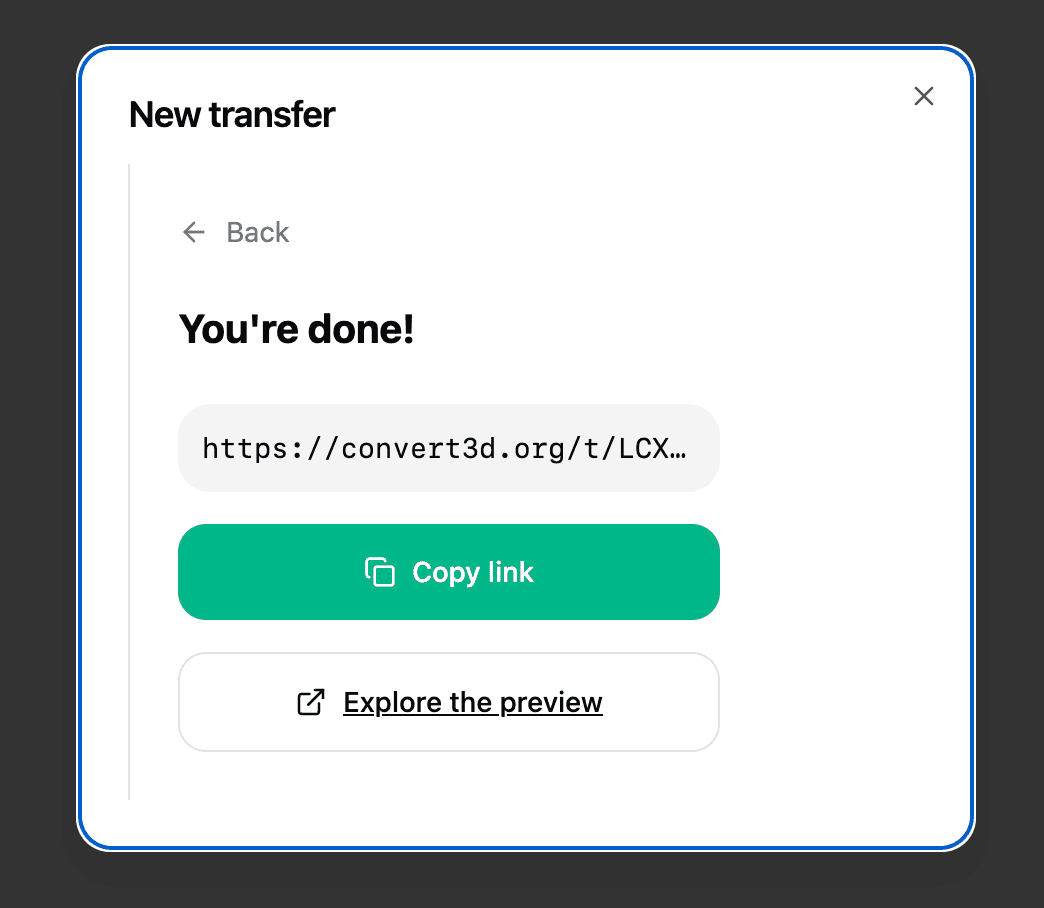
Opening the preview is worth doing once. It catches the boring but real mistakes: wrong model, wrong message, expired too soon, or missing material.
What the recipient sees
The recipient opens a preview page with the model, your title, your message, and the file count.
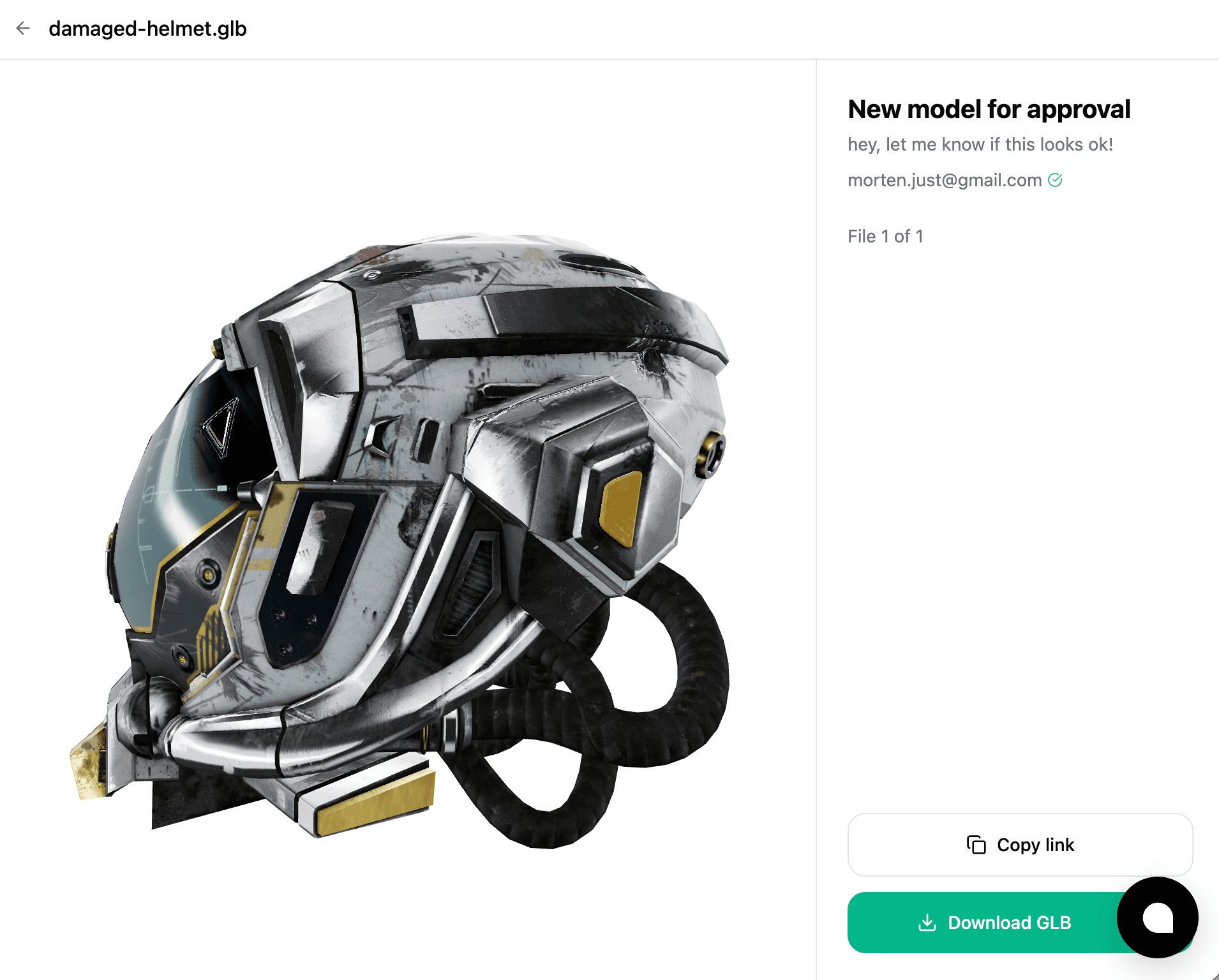
They can inspect the model in the browser. If downloads are available for the transfer, they can download the GLB from the preview page.
When sharing is the wrong tool
Use conversion instead if the other person needs a different file format.
Use compression first if the model is too large for the recipient's tool, website, or upload limit.
Use the original source files if the recipient needs to edit the model with all project data intact.